Navigating to SMS templates
From the top navigation bar in your EnrolNow CRM, click SMS Templates.
Creating a new template
Please see a video below with instructions on how to clone and create a new SMS template with merged fields.
Please test the SMS with an individual test child before sending a bulk SMS (to make sure the merge fields are as you expect).
Detailed instructions fir SMS Template fields
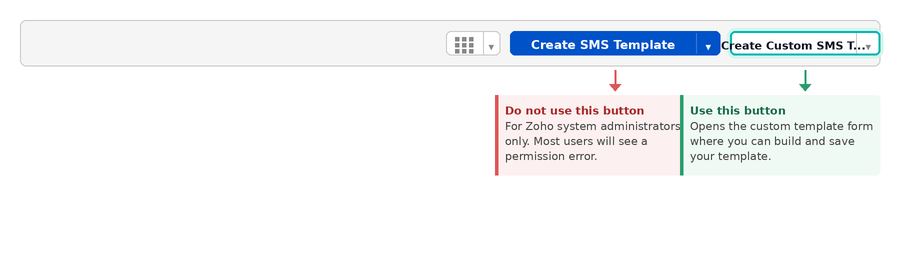
After clicking the grey Create Custom SMS Template button. A pop-up window will appear.
template name | Enter a name for internal reference. This is how the template will appear in lists when you go to send an SMS. Choose something descriptive so your team knows when to use it, for example: Offer Reminder – Children or Enrolment Form Nudge – Parents. |
module | Select the module this template will be sent from. The module you choose determines which merge fields are available. Options are:
Important: after saving, you will only be able to access this template when sending an SMS from the module you selected here. Choose the module that matches where you will be sending the message from. |
sms template body | Type the content of your SMS in the text area. To personalise messages automatically, you can insert merge fields using the two dropdown lists above the text area: Insert Module Field: Use this for contact-related details, such as a child's first name, their allocated service, or a parent's email address. The fields available here are specific to the module you selected above.Insert User Field: Use this for details about the person sending the SMS. For example, inserting a User Name field at the sign-off means the message will automatically close with the name of whoever sends it. To insert a merge field, click the relevant dropdown, find the field you need, and select it. The placeholder will be inserted at the cursor position in your message body. |
Saving your template
Once you are happy with your template, click Save Template. After saving:
- The template will appear in the SMS Templates module list.
- The character count for your message will be displayed in the SMS Template Length column.
- The template will be available to select when sending an SMS from the module you chose.
Tips for writing sms messages
- Watch your character count. Standard SMS messages are 160 characters. Messages over this length may be split and sent as multiple parts, which can incur additional costs depending on your SMS provider. Always check the character count after saving.
- Name templates clearly. Include the purpose and module in the name, for example: Offer Reminder – Children or Enrolment Form Nudge – Parents. This helps your whole team find the right template quickly.
- Preview merge fields. Before sending to a large group, review the template to make sure merge field placeholders are correct and will populate as expected.
Was this article helpful?
That’s Great!
Thank you for your feedback
Sorry! We couldn't be helpful
Thank you for your feedback
Feedback sent
We appreciate your effort and will try to fix the article