Once your programs are set up, keeping them current is what keeps your child details (often used in email templates), map, allocation engine , and SISO accurate. And of course, if you utilise EnrolNow's Integrated Program Preference Form (iPPF) or Integrated Registration Form (iRF) these form read directly from your Programs module, so any change you make in the Programs module flows through to what families see.
This article covers the day-to-day upkeep of programs once they exist, how to control whether a program is visible, how to archive a program you no longer need, and what to do when you edit a program that already has children allocated to it.
If you're setting up programs for a new year for the first time, start with Create a new program individually or in bulk, then come back here for ongoing maintenance.
Controlling whether a program is visible
A program's visibility is controlled by three separate settings on the program record. They do different things, so it's worth knowing which one you need:
- Program Active? — A program must be marked as Active to appear on your iPPF, registration form or on the interactive program map. Tick Program Active? when you're ready for families to see and preference the program. You can also use the Program Activation Date field to schedule this being switched on automatically on a future date, so you can prepare programs ahead of time without them appearing early.
- Quick Action Access Only — Use this for a program you want available for internal allocations but that families should not see on the form. The program stays usable by your team behind the scenes while staying hidden from families. This field can be useful for a program that is oversubscribed and that you therefore wish to hide from display to families on forms.
- Pre Prep Group? — This attribute controls which children can see the program based on their Pre-Prep priority cohort. When a program is tagged with a priority cohort (P1, P2, or both), only children who meet that cohort's criteria will see it, other families won't. For more on classifying Pre-Prep programs, see Classifying a Program for Pre-Prep.
A quick way to think about it: Program Active? is the switch that determines whether families can see and preference a program — if it's true, the program displays. Quick Action Access Only is separate — it lets you keep a program available to your team only.
Important Note: If your service's Pre-Prep display policy is set to "Only", eligible children are shown only Pre-Prep programs. This means that if you haven't tagged and activated a suitable Pre-Prep program for their cohort and care period, those children will see no programs at all. If you're not sure how your Pre-Prep display policy is set, or you'd like it changed, get in touch with our team — it's a setting we manage for you.
Keeping program details accurate for SISO, Arrival and email templates
A few fields on the program record do more than control what families see — keeping them accurate saves you time across SISO, your Multiple Child Upload file for Arrival and your email templates. It's worth updating these whenever a program's details change:
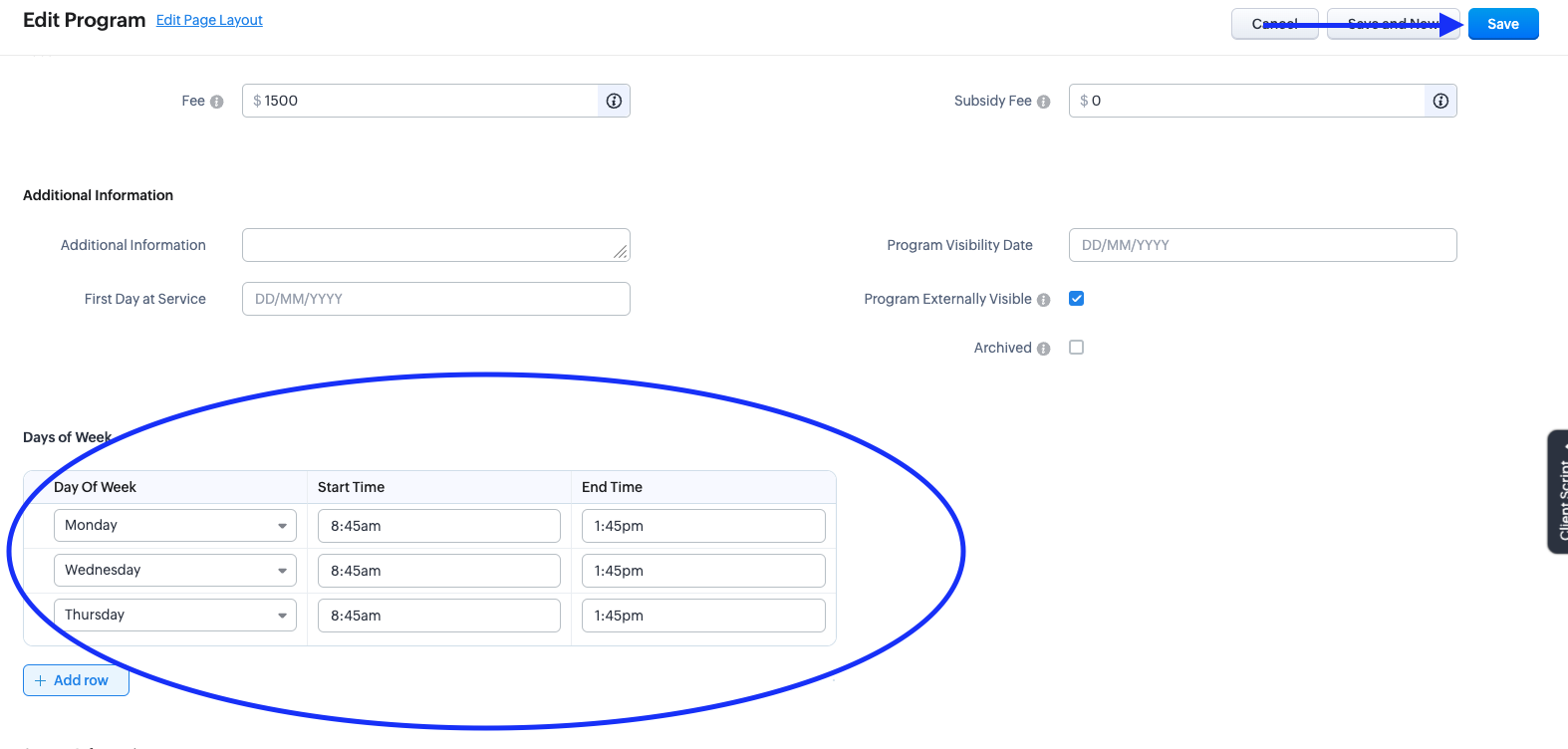
- Days of Week — Select the relevant days and enter the start and end time for each. These days and times show on the Integrated Forms (iRF and iPPF) and the registration form map, and are included in the email templates that advise families of their allocated days and times — so keeping them accurate matters for what families see. They also drive SISO: if the days on the program don't match, children won't show on the right days in the SISO app.
- Room — If you'd like to use the room toggle in SISO, add the Room for each day in the Days of Week subform. This lets you view children by room rather than by program, which can be handy for mixed-age programs or where multiple programs run in the same room.
- First Day at Service — Usually the Term 1 start date for the year. This is used for data shared with the Department of Education, and it populates the first day at service for children in your Multiple Child Upload file for Arrival. Setting it at the program level means you can update all allocated children efficiently rather than one by one.
- Total Capacity — The maximum number of children you want allocated to the program. For how capacity is calculated and managed across the allocation process, see Allocation Engine: Capacity Management.
- Additional Information — Optional free text that can be shown on the registration form map and included in the email templates advising families of their allocation. Use it for anything families should know about the program that the standard details don't capture.
Tip: To change the Days of Week (or a program's start / end times), you'll need to click Edit on the program record first, these aren't among the fields you can change directly inline. Once you're in edit mode, update the Days of Week area and click Save. As above, remember to click Update Children afterwards so the new days and times flow through to children already allocated to the program.
Editing a program that already has children allocated
If you update a program that already has children allocated to it, here's what happens to those children's records — and the one step you need to remember:
- If you change the program name, allocated children's records update automatically to reflect the new name. No further action is needed. Note that a program name must be unique for the service for that program type and care period.
- If you change the program's days or times (the timetable), this does not update the Current Program Details or Upcoming Program Details field on allocated children automatically. These fields are often used in email templates. Therefore, after you save your timetable changes, click the Update Children button on the program record. This pushes the updated days, times and details through to every child currently allocated to that program.
If you've changed a timetable and the new details aren't showing on your allocated children, the most common reason is that the Update Children button hasn't been clicked yet. Try returning to the updated program and clicking the Update Children button.

Archiving a program you no longer need
When a program is no longer offered, archive it rather than leaving it sitting in your module. Archiving a program removes it from everywhere it would otherwise appear, so it won't be offered to families or picked up in allocations by mistake. Once archived, a program:
- No longer appears on the iPPF or iRF
- No longer shows on the registration form map
- No longer appears in the Allocation Engine
- Is no longer passed through to SISO (for SISO customers)
Archiving is the clean way to retire a program when an offering changes, while keeping its history intact for your records.
A note on timing: Because your forms read live from your CRM, changes generally appear quickly, but the form caches program data for up to 10 minutes. If you've just made a change and want to confirm it straight away, give it a little time before assuming something hasn't worked — and if anything still looks off, get in touch with our team and we'll take a look with you.
Related articles
Was this article helpful?
That’s Great!
Thank you for your feedback
Sorry! We couldn't be helpful
Thank you for your feedback
Feedback sent
We appreciate your effort and will try to fix the article